Data curation and validation
In the previous sections, we covered what passport data is, what Genesys requires, and how to format it correctly. This section explains what happens between having a prepared file and seeing your data live and accurate on Genesys. We also look at curation as an ongoing practice for the years to follow.
We cover three topics in this section:
- validation: catching problems before upload using the Validator Tool
- the Passport Data Completeness Index (PDCI): a completeness score that tells you where to focus improvement
- the principle of iterative improvement: publishing what you have today and improving it over time
Validate before you upload
Genesys provides a public validation tool at validator.genesys-pgr.org
The Validator Tool is focused, not exhaustive. It validates two high-value categories of data: taxonomy (against the GRIN taxonomic backbone) and geography (country codes and coordinate plausibility). Within that scope, it does more than just flag errors. It actively suggests corrections and auto-completes missing values, providing useful curation help rather than just reporting errors.
The Validator Tool does not require login. Anyone with prepared passport data can use it.
You can find a short introductory video on the basics of the Validator Tool here: youtu.be/LR9Fl1P84Gc.
Always run your file through the Validator Tool before uploading to production. It is faster to fix a validation error in your spreadsheet than to fix a rejected upload after the fact.
How the Validator Tool works
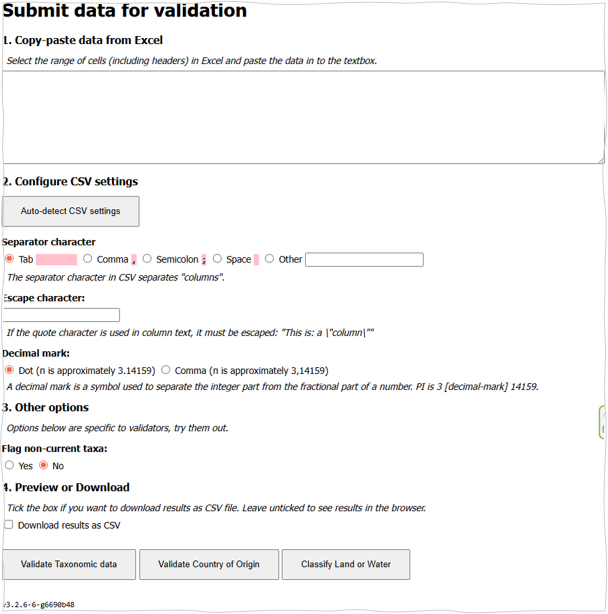
The Validator Tool is a simple paste-and-click tool. Here is the workflow:
- Open
validator.genesys-pgr.orgin your browser. - In your Excel file, select the specific columns you want to validate for one of the three checks below.
- Paste those columns into the rectangular paste area on the validator page.
- Click the relevant validation button for the check you want to run.
- Review the output: the Validator Tool returns your data with additional columns in yellow containing its suggestions and corrections, plus an interpretation paragraph.
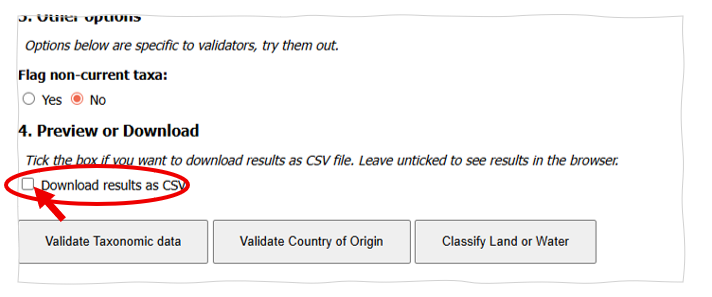
- You can either copy the results back into Excel or tick the "Download results as CSV" box to download them.
- Apply the corrections to your master file as appropriate, after reviewing with colleagues at the genebank.
Each of the three validation checks runs independently. For a full file review, you typically run all three in sequence: taxonomy first, then country of origin, then land/water check on coordinates.
Important: The Validator Tool only recognizes columns that use exact MCPD field-code names (see Preparing MCPD-compliant data). If your taxonomy columns are titled
Genus,Species(capitalized) rather thanGENUS,SPECIES, the Validator Tool will not process them. Rename headers to MCPD field codes before pasting.
What each Validator check does
1. Validate taxonomic data
Inputs: GENUS, SPECIES, SPAUTHOR, SUBTAXA, SUBTAUTHOR columns.
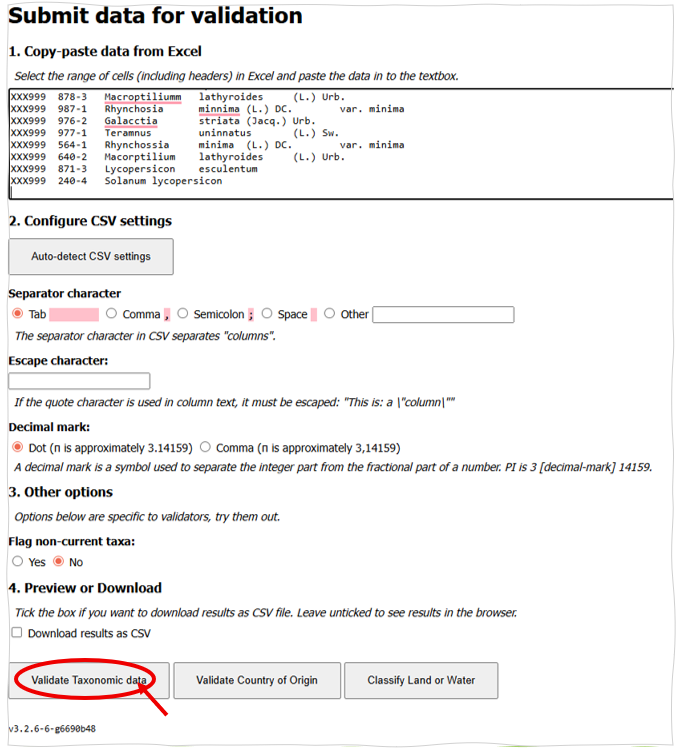
What it does:
- Checks your taxonomy entries against the GRIN (Germplasm Resources Information Network) taxonomy database
- Flags spelling errors and unrecognized names
- Auto-completes missing fields where it can: for example, if you provide
GENUSandSPECIESbut leaveSPAUTHORempty, the Validator Tool may return the standard species authority for that taxon. The same applies toSUBTAXAandSUBTAUTHOR.
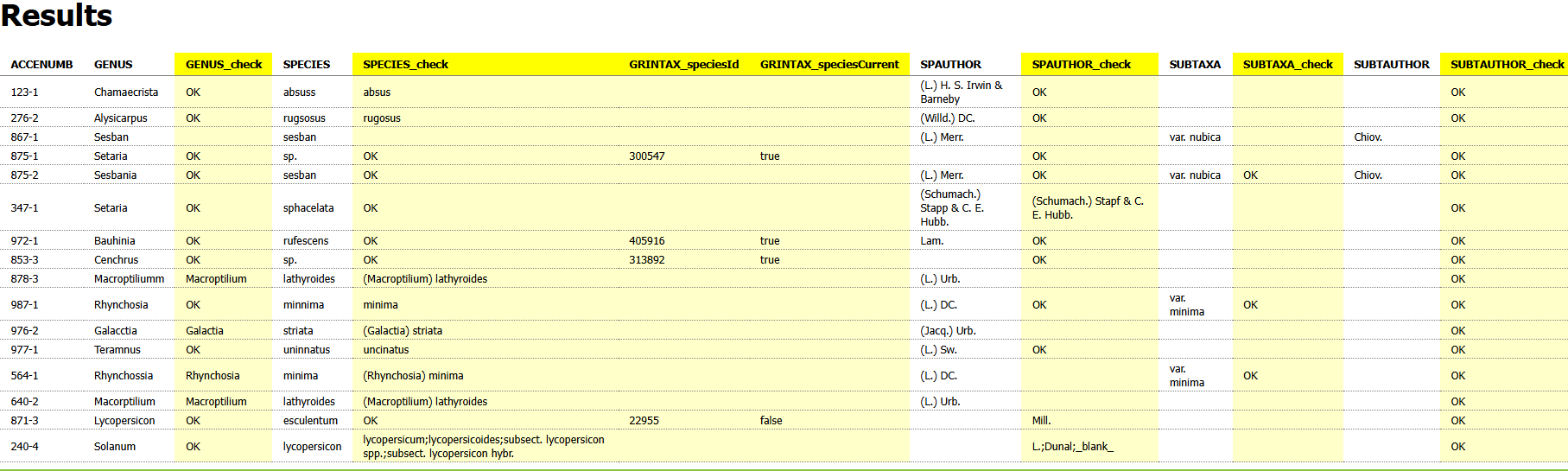
Because the Validator Tool's suggestions are based on GRIN (a USDA-ARS maintained database), they reflect one particular taxonomic authority. Other authorities may use different names or different authority attributions. Review the suggestions with colleagues at your genebank before accepting them unreservedly: they are suggestions, not corrections that must be applied.
2. Validate country of origin
Inputs: ORIGCTY, DECLATITUDE, DECLONGITUDE columns.
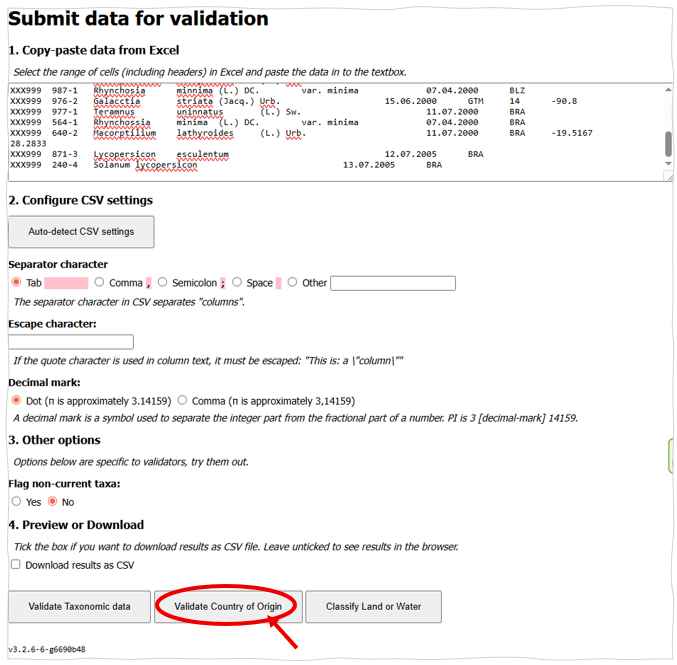
This check does two related things:
- Checks ORIGCTY against the ISO 3166-1 alpha-3 code list, flagging entries that are not valid codes (e.g. "Zambia" instead of "ZMB" or a code that does not exist)
- Cross-checks the country code against the coordinates, flagging cases where the latitude/longitude appears to fall in a different country than the
ORIGCTYvalue suggests
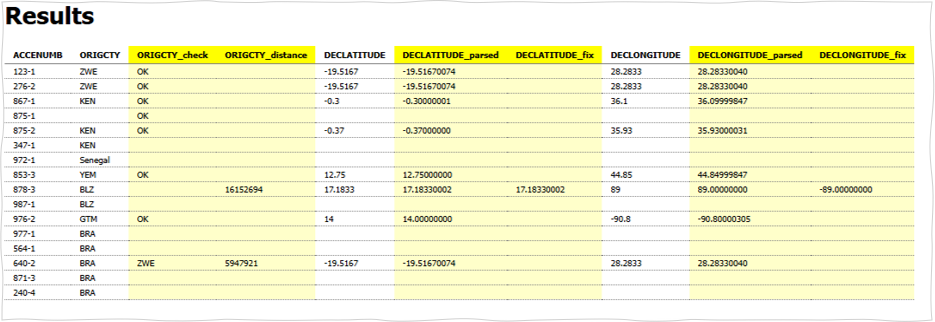
The output returns yellow columns named ORIGCTY_check, DECLATITUDE_check and DECLONGITUDE_check. In the typical case of a mismatch between country and coordinates, the Validator Tool presents you with two possible interpretations:
- (a) The country code is wrong: accept the Validator Tool's suggestion in
ORIGCTY_check - (b) The coordinates are wrong: accept the suggestion in
DECLATITUDE_checkandDECLONGITUDE_check
Important: Take one interpretation or the other, but do not cherry-pick across the two suggestions. The Validator Tool presents these as mutually exclusive corrections, accepting ORIGCTY_check from option (a) while also accepting DECLATITUDE_check from option (b) will produce a record that is internally inconsistent. Consult your collecting records or colleagues to decide which interpretation matches reality and apply that one fully.
3. Classify land or water
Inputs: DECLATITUDE, DECLONGITUDE columns.
What it does: Checks whether each coordinate pair falls on land or in a body of water (sea, ocean, lake, river). Useful for catching coordinate errors that are not detected by country-level checks, for example, a transposed latitude/longitude pair that lands a "collected from a wheat field" accession in the middle of the Indian Ocean.
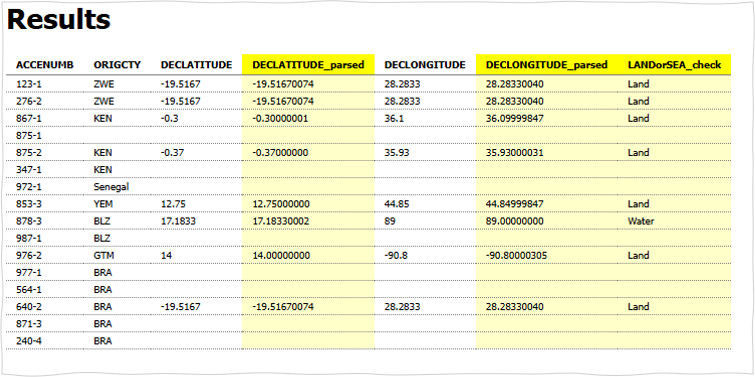
This is the simplest of the three checks and is best run after the country of origin validation, since it operates on coordinates that should already have passed the country cross-check.
What the Validator Tool does not check
Several important checks are not performed by the Validator Tool; these need to happen in Excel before you paste anything into the Validator Tool:
- Duplicate accession numbers (ACCENUMB within INSTCODE): check using Excel's Conditional Formatting → Highlight Cell Rules → Duplicate Values
- Date format compliance (YYYYMMDD): check by inspection or with formula-based checks in Excel
- Institute code validation (INSTCODE, COLLCODE, BREDCODE, DONORCODE, DUPLSITE against FAO WIEWS): use VLOOKUP or XLOOKUP against the WIEWS list (Preparing MCPD-compliant data documentation)
- Multiple-value formatting (semicolon-no-space): check by inspection
- Missing value encoding (empty cells rather than "N/A", "unknown", "-", etc.): check using Find and Replace
- Click-and-drag errors (where Excel's Fill Handle has continued a pattern when you meant to copy): check by comparing consecutive cells in dates and numeric columns
- Controlled vocabulary values (SAMPSTAT, COLLSRC, STORAGE codes against the MCPD code lists): check manually or via VLOOKUP against an MCPD reference table
- SAMPSTAT
999without a REMARKS prefix: this is flagged during the Genesys upload, not by the Validator Tool
In other words: the Validator Tool is the last step in your preparation workflow, not the only step. The workflow for preparing passport data is Cleaning → Standardizing → Validating, with the Validator Tool sitting at the end of "Validating".
Output: the yellow columns
For all three validation checks, the output appears as new columns added to the right of your data, highlighted in yellow. These columns contain:
- The Validator Tool's check results for each row
- Suggested corrected values where the Validator Tool has a confident suggestion
- Brief interpretive notes at the top of the panel
You can either:
- Copy the results directly back into Excel from the page or
- Tick the "Download results as CSV" box and save the output as a file
Apply the suggestions to your master file as appropriate. Always review suggestions with colleagues before applying them in bulk and keep a copy of your original data in a safe location so you can run quality checks at a later stage.
The Passport Data Completeness Index
The PDCI is a helpful score from 0 to 10 that tells you how complete your accession's passport data is. Instead of just checking if the data is correct, it looks at whether the important information is actually there. It is a fantastic way to spot patterns in your collection and figure out where your curation efforts will have the most impact.
You can find all the details on how it works and how to use it in our full guide: The Passport Data Completeness Index (PDCI).
The principle of iterative improvement
If you take only one principle from this section, take this one: publish what you have now, improve it over time.
This sounds obvious, but it is genuinely countercultural for many genebank curators. There is a strong impulse, entirely understandable, to delay publication until the data is "ready". The result is often that data is never published, because no large collection is ever in a fully curated state.
Genesys' consistent position is the opposite: start small, add details later.
Why iterative is better than perfect
Three concrete reasons:
Your data is more valuable in the system than out of it. A user searching for sorghum landraces from Sudan cannot find your collection if it is not on Genesys. The presence of a sparse record with the right INSTCODE, ACCENUMB, GENUS and ORIGCTY is more useful than the absence of any record. A breeder may then contact you for more detail, which is itself an opportunity to fill in the gaps.
Errors get found faster. Once your data is published, other curators, researchers and users may notice things, a misspelled species name, a coordinate that doesn't match the country, an obvious duplicate of another genebank's accession. These signals reach you faster than any internal review.
Curation work is easier in context. Filling in collecting dates and coordinates is more motivating when you can see the record you are improving live on Genesys, with its PDCI score updating as you work. An offline curation project that may never publish has no such feedback loop.
What "later" looks like in practice
Genesys is designed for continuous improvement of your data. You do not need to re-upload the entire dataset to fix individual records. The Uploader Tool and the API both support partial updates: you can re-publish a single accession with newly discovered information or batch-update a subset of fields across a range of accessions, without touching the rest of your collection.
Practical workflows that work for many genebanks:
- Tie curation to your existing genebank operations. When an accession is regenerated or distributed, take the opportunity to review and improve its passport record at the same time.
- Schedule a monthly or quarterly "PDCI day". Spend a few hours pulling up records in the middle of your PDCI distribution and adding what you can find from historical archives.
- Update after collecting missions. When new collecting data arrives, update Genesys at the same time you update your internal database, not months later.
Frequency of Data Updates section covers update cadence and the recommended minimum frequency in more detail.
What about historical accessions you can no longer improve?
Some accessions in any old collection simply do not have additional information available, the records were lost, the collectors are no longer reachable or the accession itself has been deaccessioned. This is normal.
The right thing to do with these is not to delete them but to publish what you have and accept the low PDCI for those records. Historical accessions remain useful as references in publications and other databases, even when their passport data is sparse. Frequency of Data Updates section covers the distinction between active and historical accessions and the right way to mark accessions whose status has changed.