How to search Genesys?
Filtering data by taxonomy and provenance is useful, but do you know about all the advanced filtering options available in Genesys? There are many ways to find the accessions you are looking for. On the Genesys homepage, you can begin your search by entering keywords of interest, but the most reliable method is using the data filters described in this guide.
For an introduction to passport data and what each field means, see Passport data.
How filters work
Regardless of how you access the passport data page, the filters pane appears on the left-hand side, with filters organized into groups (which are collapsed by default). The main section presents accession data that match your filters in different ways using the five tabs at the top.
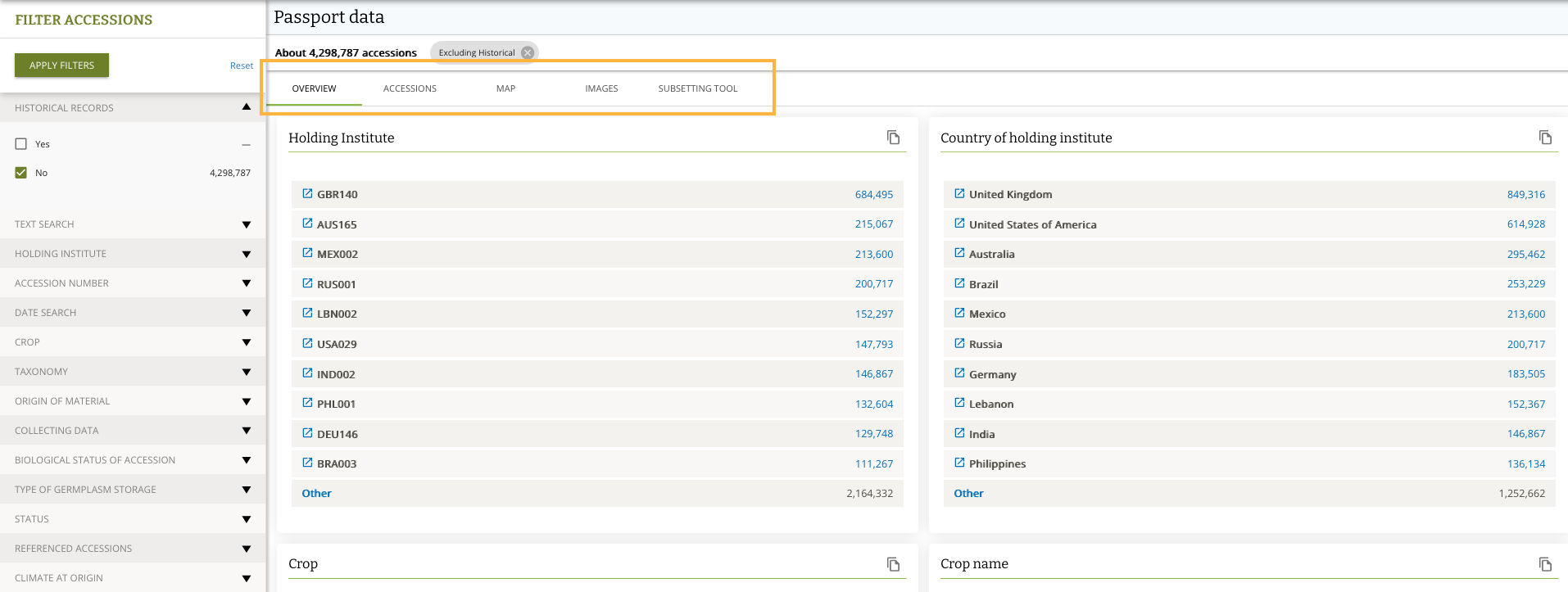
The content shown always corresponds to the currently applied filters. A good understanding of which filters to apply will enable you to find accessions of interest faster and more reliably.
Text Search
The text search scans all passport data in Genesys for matching text. This type of search is used on the Welcome page:

You can build search queries using:
- Double quotes for exact phrases:
"rice" - Pipe symbol as OR operator:
rice | leaf - Asterisk for prefix matching:
rice* - Parentheses for grouping:
(rice | wheat) & organic - Tilde for fuzzy search (finds similar spellings):
solanum~
Not sure of the exact spelling? Add a tilde (~) at the end of your search term to find similar spellings. For example, solanum~ will match "solanum", "solanum", and other close variations.
Holding Institute
A holding institute is the genebank that conserves an accession. You can narrow your search to a specific genebank using its WIEWS institute code. Type the first few letters of the genebank name or acronym and Genesys will auto-complete.
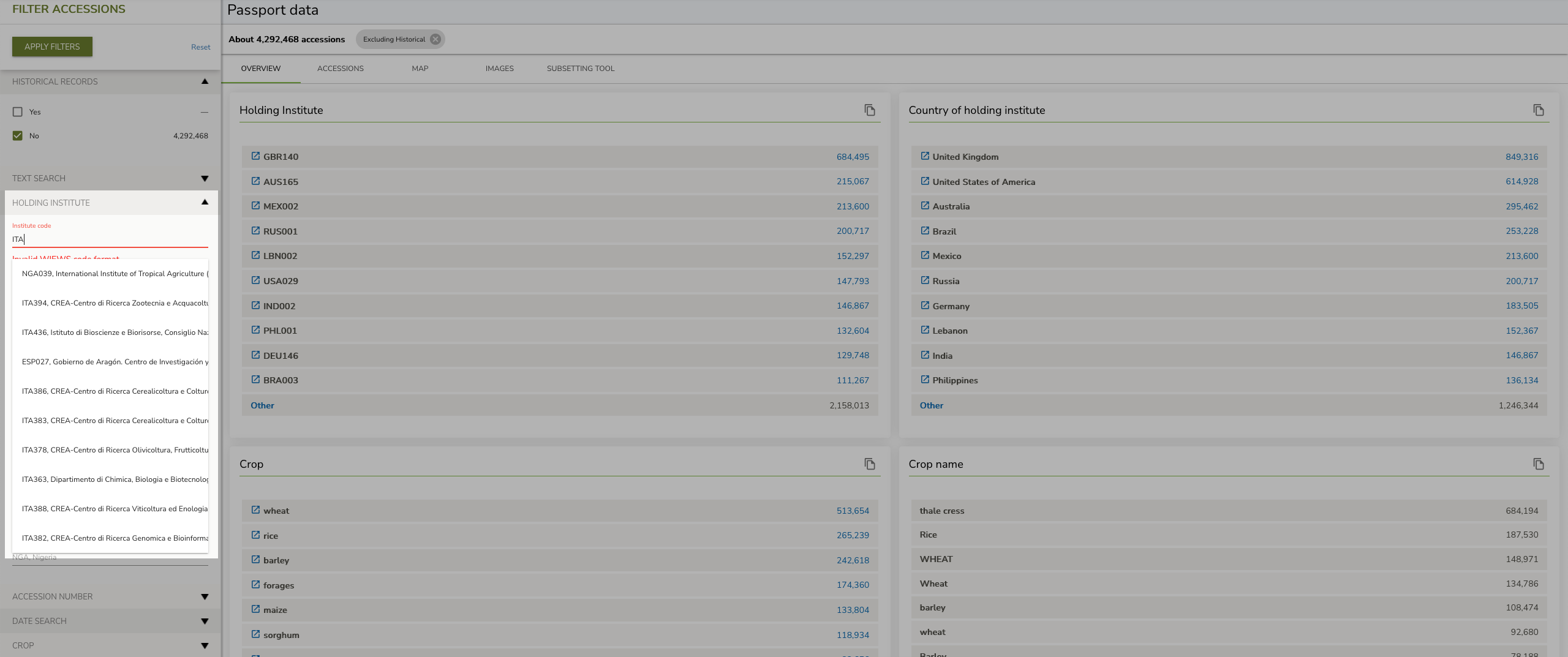
The auto-complete shows the top 10 matches sorted by number of accessions in Genesys. As you add other filters, this list updates automatically.
To filter by the country where the genebank is located, type the country name or its ISO code (for example, ITA for Italy).
Accession Number
The accession number is the unique identifier of the material in the collection. This filter allows you to:
- Enter accession numbers manually
- Copy-paste a list of accession numbers from a spreadsheet
- Specify a minimum and maximum sequential number for a range search
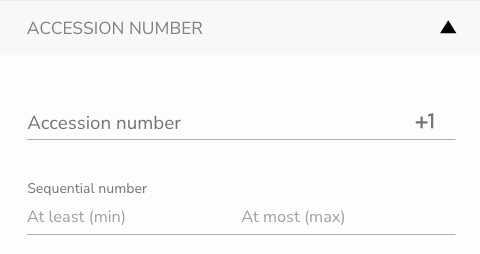
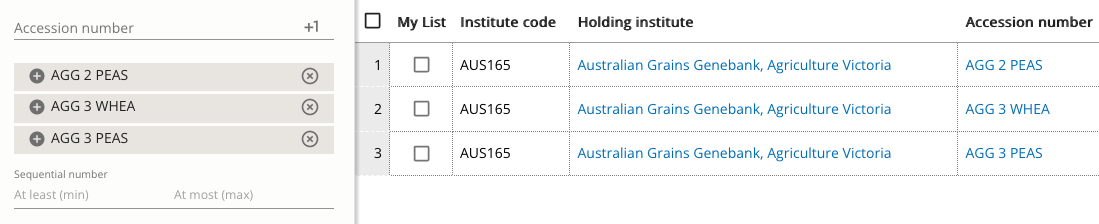
Press Enter to add more accession numbers to the query.
Genesys automatically extracts the numerical part of accession numbers, so you can query for a numeric range.
Date Search
Several date filters help you find accessions based on when information was recorded:
- Created: filters by when the accession information was first created in Genesys
- Last modified: filters by when the accession information was most recently updated
- Taxonomy last modified: filters more specifically by the time period when the taxonomy of an accession was most recently updated or modified.
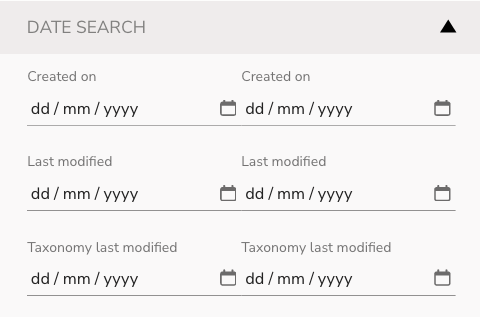
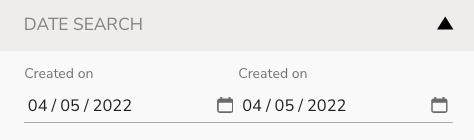
Date filters work in a range format with start and end dates.
Crop
Genesys aggregates accession data by crop names as provided by genebanks. Use this filter to search across specific crops, such as rice, wheat, or potato.
Taxonomy
You can filter accessions by their scientific names in several ways:
| Filter | What it matches | Example |
|---|---|---|
| Genus | The genus name (capitalize first letter) | Triticum |
| Species | Both genus and species name | Triticum aestivum |
| Specific epithet | Only the species name | aestivum |
| Subtaxon | Any level below species (variety, subspecies) | subsp. spelta |

Genesys matches submitted taxonomy against GRIN Taxonomy, which allows synonyms in search results. Look for the "Include synonyms in search results" button under the Taxonomy filter group.
Origin of Material
This filter follows the provenance of the material, meaning the country from which the material originates:
- If collected in the field, provenance is the country of the collecting site
- If a breeding line, provenance is the country where it was developed
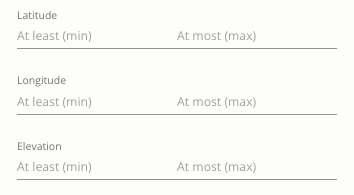
You can also filter by geographic coordinates:
- Elevation: range of heights above sea level in meters
- Longitude and latitude: decimal format ranges
For more details on passport data and provenance fields, see Passport data.
Collecting Data
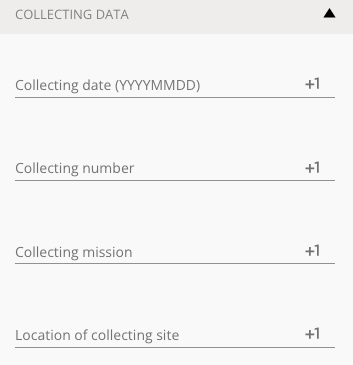
The Collecting Data filter group enables you to filter by information related to the accession collecting mission:
- Collecting date: in YYYYMMDD format (use
--or00for unknown month/day) - Collecting number: the identifier assigned by the collector, normally collector name/number
- Collecting mission ID: the identifier of the collecting mission used by the collecting institute
- Local location: information below country level describing where the accession was collected
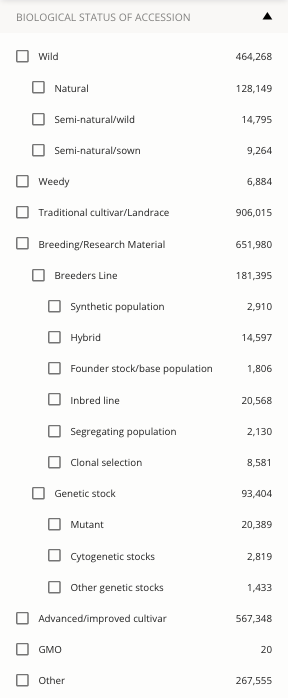
Biological Status of Accession
Filter for accessions by their level of improvement: wild, landrace, breeding material, advanced/improved cultivars, or other categories defined in MCPD.
Type of Germplasm Storage
Ex situ genebanks maintain plant genetic resources as seed, in the field, in vitro, in cryo, or in DNA collections. A single accession may be maintained in different conditions, so multiple options are possible.
Status
This filter category groups six important variables about an accession:
| Filter | What it filters |
|---|---|
| Available | Whether the accession has enough inventory for distribution |
| Has coordinates | Accessions with (or without) geographic coordinate data |
| MLS (Multilateral System) | Whether the accession is in the Multilateral System of the International Treaty |
| Svalbard backup | Whether the accession is backed up in the Svalbard Global Seed Vault |
| Has images | Accessions with images published in Genesys |
| AEGIS | Whether the accession is part of A European Genebank Integrated System |
Referenced Accessions
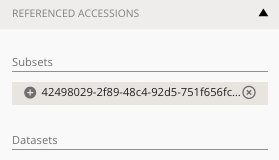
Many accessions are included in subsets or datasets. Paste the unique ID of a subset or dataset in this filter to find related accessions.
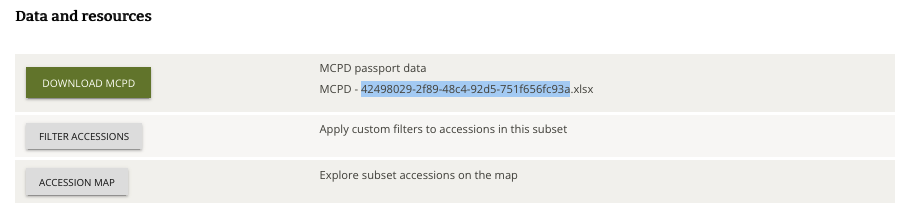
For datasets, you can also click the relevant link in the sidebar.
Climate at Origin
Genesys allows you to filter for accessions according to 19 temperature and precipitation variables from collecting sites. This filter only works for accessions with geographic coordinates provided by the genebanks.
For a detailed guide to using the climate filter, including explanations of all bioclimatic variables and how to interpret the results, see Searching by climate.
Directory pages
In the Directory navigation menu on the top banner of Genesys, you will find pages that aggregate accessions by crop, institute, or country. These directories provide another way to browse and discover material.
Getting an overview as you filter
The filters sidebar also acts as a mini-dashboard showing the distribution of accessions across different variables. For example, you can see how many accessions in the current filter set are tagged as amaranth.
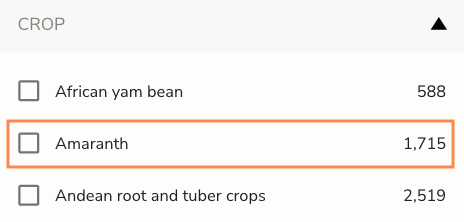
After applying filters, the overview numbers and available filter choices readjust dynamically. If you filter for accessions collected from Uruguay and none are tagged as amaranth, that option becomes invisible under the Crops filter. This makes it convenient to sift through millions of records.
Excluding matches
By default, filters search for matching values. To exclude certain matches, click the plus icon next to a filter value and switch it to a minus icon.

For example, if you want to find rice accessions but exclude those maintained by a specific institute, use the minus operator.

Removing individual filters
The top of the page shows your currently applied filters. Click the X button next to any filter to remove it without resetting all filters.
Further help
For more examples and detailed walkthroughs, you may also be interested in our webinar recording on data filtering.