AI Search
Genesys AI is a feature designed to simplify how you find accessions in Genesys. This AI-powered search tool allows you to find accessions using natural language, eliminating the need to use passport data filters or having a deep understanding of genebank data standards. Instead, you can now just describe what you are looking for.
For example, type "I am looking for rice collected after 2010 in Malaysia and held by IRRI," and Genesys AI will help you find relevant results.
Genesys AI provides AI-assisted search over passport data. It does not (yet) integrate trait data and it is not able to answer other types of queries as it is not a knowledge-based chat bot.
How Genesys AI makes searching easier
The search goes beyond keywords, offering flexibility about how you phrase your query. After your initial search, you can refine it by giving further instructions to the tool, adjusting parameters like provenance, date of collection, or genebank conserving the material. This interactive approach lets you focus on what you are looking for rather than how to navigate filters and structure a query. And once you are ready for more precise adjustments, you can switch seamlessly to the manual filters for a deeper level of control.
Current capabilities: Passport data and multilingual support
Genesys AI currently supports searches over passport data, enabling you to locate specific accessions with ease. Although it does not yet integrate trait data or handle broader knowledge-based inquiries, it is tailored to streamline the search experience and focus on accession-level data. Moreover, Genesys AI can understand queries in French and Spanish, so you can search in the language that is most comfortable for you.
Using Genesys AI
Step 1: Switch to Genesys AI
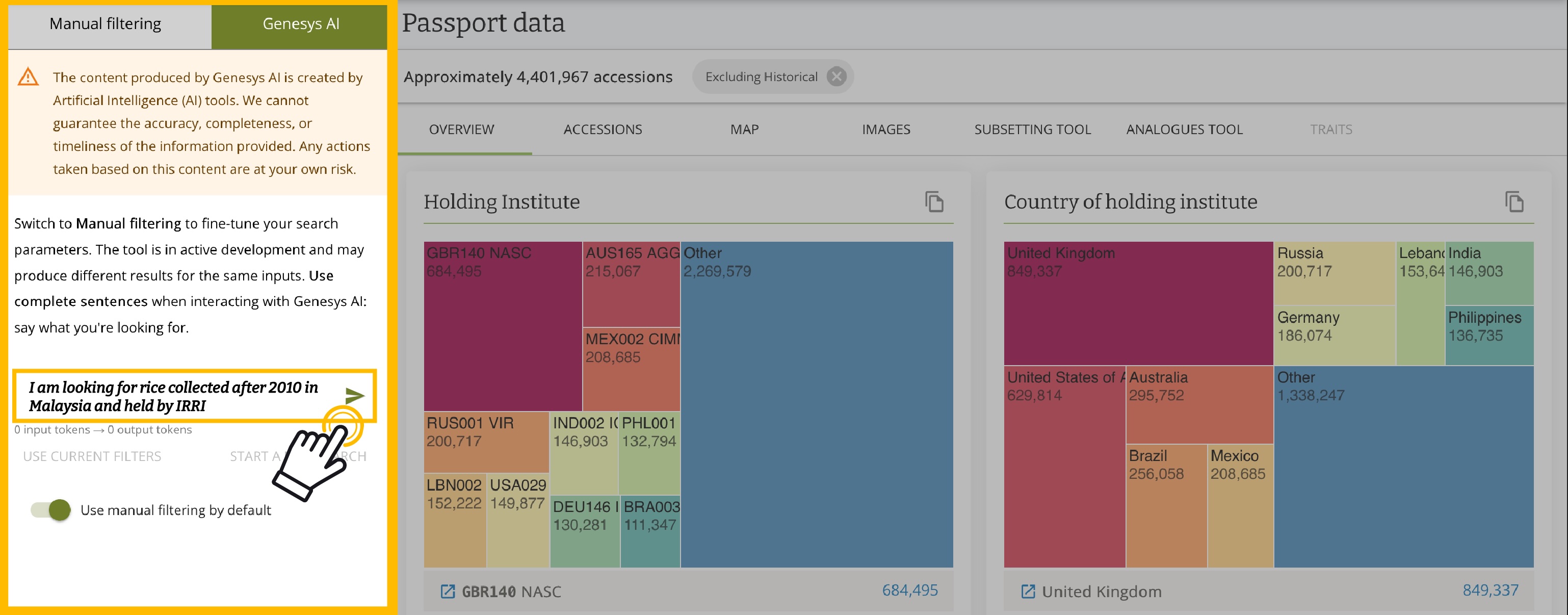
On the accession search page, you will see two tabs at the top of the filter panel: Manual filtering and Genesys AI. Click on the Genesys AI tab to switch from the traditional filter interface to the AI-powered search.

Step 2: Type your query
Once you have switched to Genesys AI, you will see a text box where you can enter your search query in plain language. The tool works best when you use complete sentences that clearly describe what you are looking for.
For example, you might type: "I am looking for rice collected after 2010 in Malaysia and held by IRRI."
The AI disclaimer appears at the top of the panel, reminding you that the content is generated by AI tools and that accuracy cannot be guaranteed. You will also see options to start a new search or use your current filters as a starting point.
Step 3: Review the results
After you submit your query, Genesys AI analyses your request and translates it into the appropriate search filters. The results panel shows exactly what the AI understood from your query: the crop (rice), the country (Malaysia), the genebank (IRRI), and the collecting date range (after 2010).
The matching accessions appear in the accession browser on the right, with the relevant filters already applied. You can see the number of results and review the details of each accession.
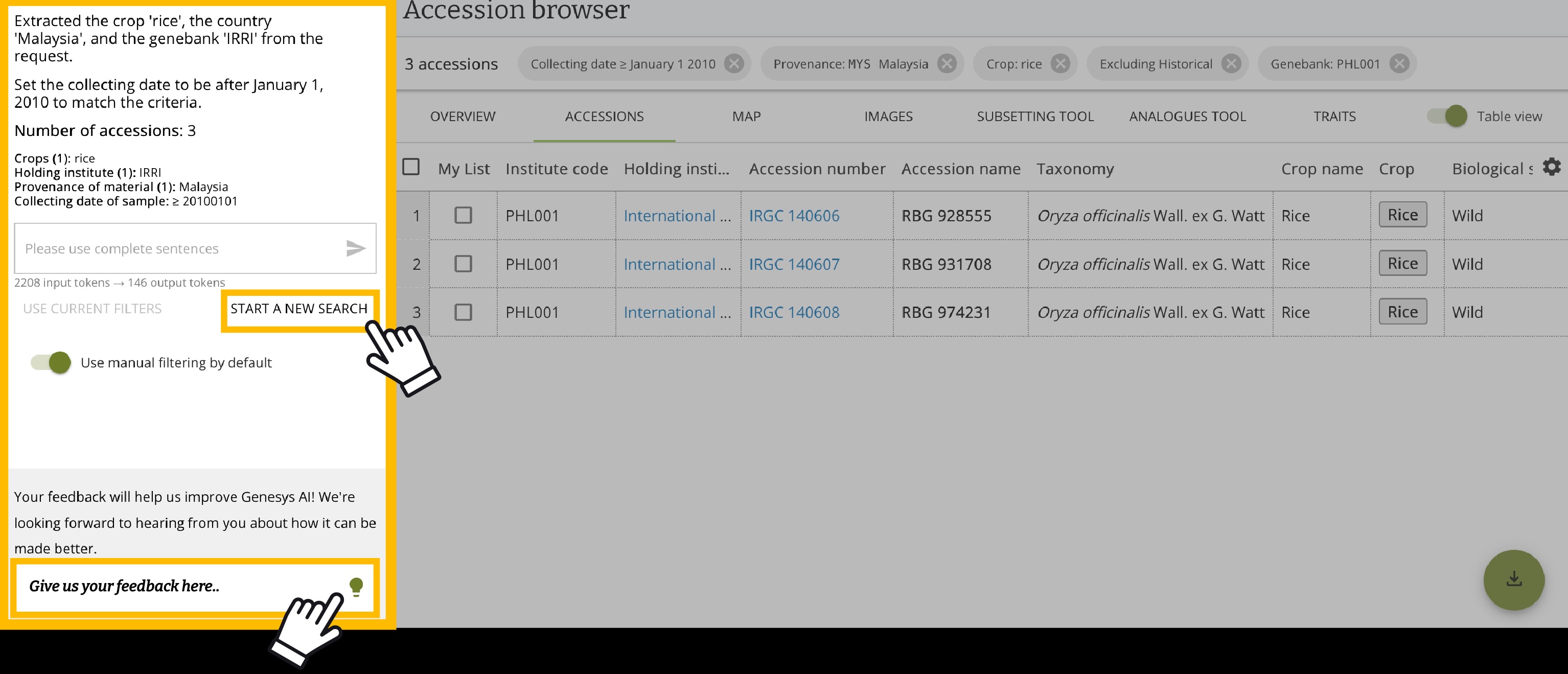
The AI also shows you the token usage for your query, which helps you understand the complexity of the search. If the results are not quite right, you can type a follow-up query to refine your search, or switch back to manual filtering for more precise control.
Refining your search
If your first query does not return exactly what you need, you can ask follow-up questions in the same conversation. For example, you might add "also include accessions from Indonesia" or "limit to wild relatives." The AI will adjust the filters accordingly and update the results.
When you are ready for more precise adjustments, you can switch seamlessly to the manual filters for a deeper level of control.
Providing feedback
Your feedback helps improve Genesys AI. At the bottom of the AI panel, you will find a feedback section where you can share your experience and suggest improvements. This input is valuable for guiding future development of the feature.